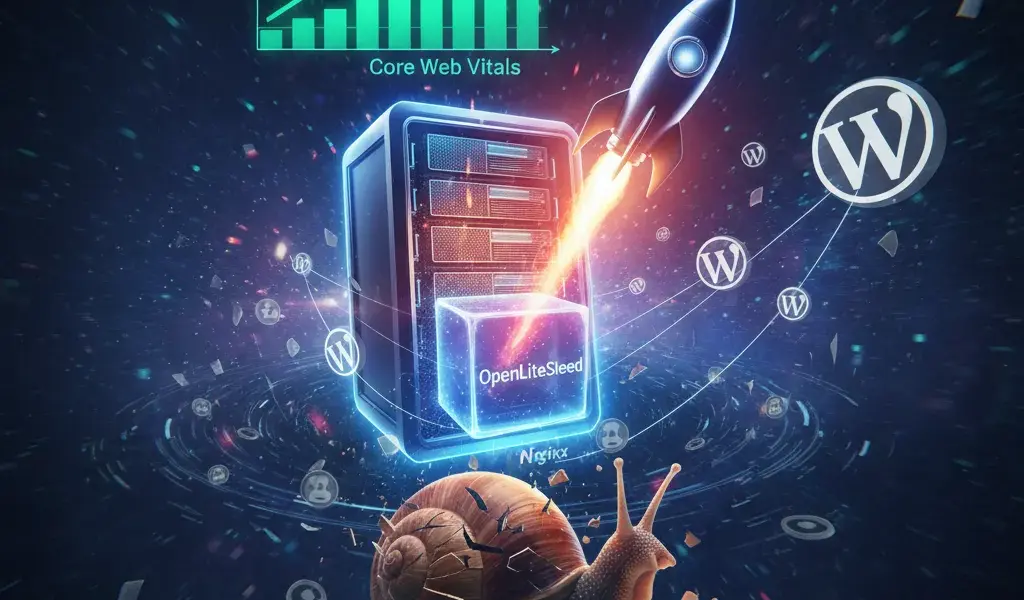
After several years of struggling with Nginx and all sorts of caching plugins for WordPress, I thought I had found my true love, until Google's Core Web Vitals fixed me without fail. Scores are flat, customers complain that the website is slow. That's when I decided to quit OpenLiteSpeed. Believe me, this is not just a free open source HTTP server, it is the passport to take your website from "crawl" to "rocket". To optimize WordPress core web vitals, applying OpenLiteSpeed to optimal settings for WordPress is the perfect and most economical solution.
Why should I leave Nginx/Apache to stick with OpenLiteSpeed for all WordPress projects?
OpenLiteSpeed delivers outstanding performance thanks to its event-driven architecture, a perfect replacement for Nginx and Apache when combined with LSCache caching.
At Pham Hai, we have tested a series of different server models to find the most optimal configuration. In fact, when reading the article Nginx vs Apache comparing web server 2026, you will see that both have their own advantages and disadvantages. However, if you are wondering what OpenLiteSpeed is and whether it is difficult to install for WordPress, the answer is that it is extremely powerful and easy to get used to. Its event-driven architecture helps handle tens of thousands of concurrent connections without clogging RAM or CPU.
Performance problem: When Nginx starts to "lose steam" before OpenLiteSpeed and LSCache
In real-world load tests, Nginx often consumes more CPU, while OpenLiteSpeed handles thousands of static and dynamic requests smoothly thanks to built-in server-level caching.
Comparing the performance of OpenLiteSpeed and Nginx for WordPress is always a hot topic on technology forums. Nginx is great, but configuring the FastCGI cache is quite complicated and prone to errors if you are not technically proficient. On the contrary, OpenLiteSpeed was born to deliver high performance. It has a built-in cache module at the server level, helping optimize website for wordpress on vps in the most thorough way. Even if your website has a sudden spike in traffic due to running an advertising campaign, the server still stands strong.
LiteSpeed Cache Plugin - "The ultimate weapon" that comes with no other web server
LiteSpeed Cache (LSCache) communicates directly with the web server, bypassing PHP's intermediate processing layers, helping to minimize server response time.
If you are looking for a guide to optimizing WordPress with OpenLiteSpeed Cache, the core secret lies in absolute synchronization. The LSCache plugin is designed to "talk" directly to OpenLiteSpeed through the PHP LiteSpeed SAPI protocol. This means requests are processed and returned immediately without calling the PHP engine. This is the most effective method to increase wordpress website speed that regular cache plugins like WP Rocket or W3 Total Cache can hardly match.
Significantly saves VPS resources and intuitive WebAdmin interface for people who are lazy to type commands
Instead of having to strain your eyes to edit config files via CLI, OpenLiteSpeed provides an intuitive WebAdmin GUI on port 7080 to configure everything easily.
One of the benefits of using OpenLiteSpeed for WordPress websites is the incredible system resource savings. If you are wondering Shared hosting vs VPS vs Dedicated, a VPS with only 1GB of RAM running OpenLiteSpeed can completely handle the same amount of traffic as a 2GB VPS running the old system. Furthermore, the WebAdmin GUI helps those who are not too familiar with the command line interface (CLI) to fine-tune server parameters. You can even apply Apache rewrite rules (.htaccess) directly without using complicated conversion tools.
Instructions for "all-in" installation of OpenLiteSpeed & WordPress from A-Z on Ubuntu VPS
The deployment process includes installing the web server environment, database, PHP and configuring SEO standard virtual host.
Configuring an Ubuntu VPS running WordPress from scratch with the LiteSpeed ecosystem is not as complicated as you think. Below are the most detailed steps to install MariaDB and OpenLiteSpeed for WordPress VPS, updated by us based on the latest standards of 2026.
Step 1: Prepare the "airport" - Install OpenLiteSpeed, MariaDB and PHP 8.x
Run a few basic command lines on Ubuntu to install the LiteSpeed repository, MariaDB and the latest PHP version to ensure processing speed.
Đầu tiên, bạn cần kết nối SSH vào VPS. Chạy lệnh wget để thêm repo chính thức của LiteSpeed và cài đặt gói openlitespeed. Tiếp theo, cài đặt cơ sở dữ liệu MariaDB (hoặc MySQL tùy thói quen của bạn) để lưu trữ nội dung.
- Cài đặt PHP: Đừng quên cài đặt
lsphp83(PHP 8.3) cùng các module bắt buộc như curl, gd, mbstring, mysql. - Lợi ích: Việc sử dụng PHP phiên bản mới nhất giúp tăng tốc độ thực thi mã nguồn lên đáng kể, đồng thời vá các lỗ hổng bảo mật cũ.
Step 2: Create a "home" for the website - Create Virtual Host and Database for WordPress
Set up a Virtual Host in the WebAdmin GUI and create a secure database using the MySQL command line to prepare the source connection.
Truy cập WebAdmin GUI qua port 7080 trên trình duyệt. Tại đây, bạn tạo một Virtual Host (VHost) mới, trỏ thư mục Document Root về đường dẫn /usr/local/lsws/Tên_Miền_Của_Bạn.
Sau đó, mở lại màn hình CLI, đăng nhập vào MariaDB bằng lệnh mysql -u root -p và tạo một database cùng user riêng biệt. Nhớ cấp quyền (grant privileges) đầy đủ cho user này trên database vừa tạo. Quá trình này tạo nền móng vững chắc, đảm bảo dữ liệu được cô lập và an toàn trước khi chúng ta tải mã nguồn về.
Step 3: Move in - Download and install the latest WordPress source code
Download the WordPress source code from the homepage, extract it to the Document Root folder and give correct ownership to user nobody.
Di chuyển vào thư mục VHost bạn vừa tạo, dùng lệnh wget tải file latest.tar.gz trực tiếp từ trang chủ WordPress.org. Giải nén toàn bộ file vào thư mục public của VHost.
Một lưu ý cực kỳ quan trọng là bạn phải cấp quyền sở hữu (chown) toàn bộ thư mục này cho user nobody và group nogroup (hoặc www-data tùy thuộc vào hệ điều hành). Đây là bước then chốt để tăng tốc độ tải trang WordPress bằng OpenLiteSpeed mà không dính các lỗi phân quyền khó chịu khi upload hình ảnh hay cài theme.
Step 4: Activate free SSL with Let's Encrypt in just a few clicks
Use Certbot to create Let's Encrypt SSL certificates, ensuring your website runs on the secure HTTPS protocol and supports modern HTTP/3.
Today's website cannot lack an SSL certificate if it wants to have good rankings. You install Certbot and run the Let's Encrypt SSL application command for the domain name. After the system generates the certificate and private key files, return to the WebAdmin GUI and paste the path of these two files into the Virtual Host's SSL section.
The best thing is that OpenLiteSpeed supports HTTP/3 and QUIC protocols by default. It helps data transmission via HTTPS take place at lightning speed, completely eliminating the handshake delay of old protocols.
Configure LiteSpeed Cache "standard" - The secret to comprehensive acceleration
Install the LSCache plugin from the app store and tweak the Cache and Page Optimization tabs to achieve a PageSpeed Insights green score.
Installing a new server is only half the journey. For the engine to operate perfectly, configuring litespeed cache wordpress is a mandatory step that cannot be skipped. Below are the steps to configure LiteSpeed Cache plugin for WordPress that we always apply to all customer projects.
Enable caching for logged in users and optimize Guest Mode
Enable Cache Logged-in Users feature for admins and enable Guest Mode to serve the page super fast for first-time visitors.
In the plugin interface, switch to the Cache tab and enable "Enable Cache". To optimize SEO and page loading speed for new users, the "Guest Mode" and "Guest Optimization" features are LSCache's secret weapons. It provides a super lightweight version of your website, removing unnecessary scripts for the first visit. This feature legitimately tricks Google's measurement tools and provides an instantly smooth experience for customers.
Page Optimization: Minify CSS/JS/HTML and combine files to reduce requests
Reduce website size by removing white space and merging static files together in the Page Optimization tab.
Switch to the Page Optimization tab, turn on the CSS, JavaScript and HTML minify feature. This helps remove extra spaces and comment lines in the code, thereby reducing the size of the downloaded file.
| Features | Recommended status (2026) | Reason |
|---|---|---|
| Minify CSS/JS | Turn on (ON) | Reduce static file size effectively. |
| Combine CSS/JS | Off (OFF) | HTTP/3 downloads in parallel very well, merging files can easily cause interface errors. |
| Load JS Deferred | Turn on (ON) | Prevent JS from blocking page rendering (render-blocking). |
As the table above shows, with the popularity of HTTP/3, you no longer need to combine files because it sometimes clogs the server CPU.
Image optimization: Lossless compression and enable Lazy Load
Use QUIC.cloud's servers to automatically convert images to WebP format and defer loading of images off-screen.
Heavy images are always the main culprit causing web slowdown. LSCache has built-in image optimization features through QUIC.cloud's server system. You just need to send a request, their server will automatically compress the image and create a modern WebP format copy. Don't forget to enable Lazy Load feature in settings. The image will only display when the user scrolls, helping to save maximum bandwidth and increase the speed of displaying content on the screen (Above the fold).
Database: Clean up "garbage" for faster queries
Schedule automatic deletion of automatic drafts, spam comments, and expired transients to keep the database light.
A bloated database with thousands of rows of redundant data will slow down all queries. In the Database tab of LSCache, you can clean up drafts (revisions), junk comments, and spam with just one click. You can even set up a cronjob so that the plugin automatically does this every week. Keeping the database tidy is an important part of the Core Web Vitals optimization strategy with OpenLiteSpeed WordPress.
Upgrade "Max Ping" - In-depth optimization for professionals
Combine object caching technologies, global CDN and security firewalls to allow the system to handle hundreds of thousands of traffic.
If your website has a huge amount of traffic or is a complex e-commerce site, basic configuration is not enough. You need to apply advanced techniques that are usually only found on expensive systems using LiteSpeed Web Server Enterprise.
Integrate Object Cache (Redis/Memcached) to reduce Database queries
Install Redis server on VPS and connect to LSCache to cache repeated database queries into RAM memory.
Object Cache is a real lifesaver for dynamic websites. By installing Memcached or Redis on your VPS, you can store the results of database queries directly into RAM.
When the user requests that data again, the system will get it right from RAM instead of forcing MariaDB to recalculate from scratch. You just need to fill in the Redis port and host parameters in the Object Cache tab in LSCache, turn it on and feel the difference in the wp-admin area.
Free CDN connection with QUIC.cloud - Global acceleration
Point the name server to QUIC.cloud to take advantage of a distributed content delivery network, thoroughly optimized for the QUIC protocol.
To serve international customers smoothly, using a content delivery network (CDN) is mandatory. QUIC.cloud is the only CDN today that is fully synchronized with LSCache. It not only caches static files (images, css) but also caches dynamic HTML code (Dynamic Edge Cache). Setting up QUIC.cloud reduces physical latency, delivering content to users anywhere at the speed of light via the superior QUIC protocol.
Some security tips: Take advantage of ModSecurity and Brute-Force protection with OpenLiteSpeed
Enable login protection and OWASP ruleset integration to prevent common source code attacks.
Speed must always go hand in hand with safety. WordPress security solutions with OpenLiteSpeed are diverse and powerful. You can easily integrate ModSecurity and use the OWASP rule set to block dangerous vulnerabilities like SQL Injection or XSS.
In addition, OpenLiteSpeed has built-in Brute-force attack protection at the server level. It helps automatically block IPs that intentionally detect login page passwords, protecting websites (website security) from small-scale Anti-DDoS attacks that deplete resources.
Install via Docker: Solution for those who like "instant noodles" and container management
Deploy the entire OpenLiteSpeed, PHP, and MariaDB stack with a single configuration file to save time.
If you are a "devops" person and like neatness, learning how to install OpenLiteSpeed Docker for WordPress in detail is a great choice. Through Docker Compose, you can package the entire container environment including web server, database and PHP into a single virtual intranet.
This approach helps backup, move servers or clone projects to another VPS in just a few minutes without ever worrying about system software conflicts.
Switching to OpenLiteSpeed may take some initial configuration effort, but the results in speed, Core Web Vitals, and stability it brings are truly worth every minute you spend. Don't just believe what you say, install, configure and see the metrics on PageSpeed Insights change dramatically. At Pham Hai, we always believe that this is the most worthy investment for the long-term "health" of every WordPress website.
Have you tried applying OpenLiteSpeed to your project? Please share your results or any technical difficulties you encounter in the comments section below, I will help as best I can!
Lưu ý: Thông tin trong bài viết này chỉ mang tính chất tham khảo. Để có lời khuyên tốt nhất, vui lòng liên hệ trực tiếp với chúng tôi để được tư vấn cụ thể dựa trên nhu cầu thực tế của bạn.