Logging into WordPress admin is a basic but extremely important operation so you can manage the entire website, as well as update your content. This article will provide detailed instructions on how to log in to the admin page (wp-admin), how to quickly handle forgotten passwords and fix common login errors. Mastering this information helps you proactively control and protect your website more effectively.
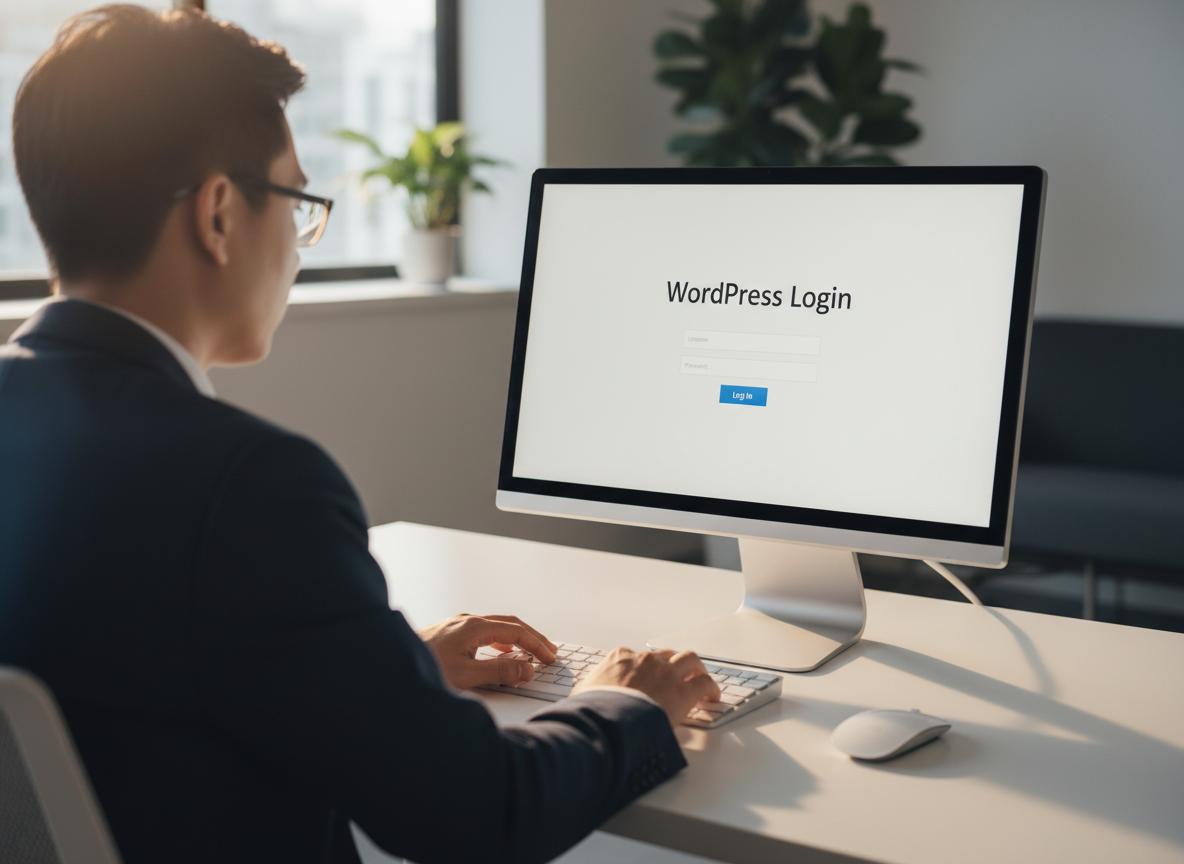
3 Fastest and most standard ways to log in to the WordPress admin page
There are 3 main methods to access the WordPress dashboard depending on where and how you installed the source code. Below are detailed instructions for each specific case.
Method 1: Use the default path /wp-admin or /wp-login.php.
Thêm hậu tố /wp-admin hoặc /wp-login.php vào sau tên miền gốc là cách đăng nhập WordPress phổ biến và đơn giản nhất.
Đối với phần lớn các website, cấu trúc URL mặc định để truy cập trang đăng nhập sẽ có dạng tenmien.com/wp-admin hoặc tenmien.com/wp-login.php. Khi truy cập vào đường dẫn này, một biểu mẫu sẽ hiện ra yêu cầu bạn điền tên người dùng (username) và mật khẩu (password).
For newcomers, understanding these basic operations is a very important foundation. If you don't have a website yet, learning instructions for creating a wordpress website is the necessary first step before performing the login steps.
We at Pham Hai: Personal Blog always encourage users to remember this link, or save it in bookmarks on the browser to save time when managing the website later.
Method 2: Log in from a subfolder or subdomain.
If your website is installed in a subfolder or subdomain, you need to assign the login suffix to that exact path.
Trong trường hợp bạn chạy nhiều website trên cùng một hosting, việc cài đặt vào thư mục con (ví dụ: tenmien.com/blog/) hoặc subdomain (ví dụ: blog.tenmien.com) rất phổ biến. Khi đó, đường dẫn đăng nhập wp-admin sẽ thay đổi tương ứng:
- Thư mục con:
tenmien.com/blog/wp-admin - Tên miền phụ:
blog.tenmien.com/wp-admin
Below is a summary table to help you more easily visualize the basic login paths:
| Installation location | Website URL structure | Standard login path |
|---|---|---|
| Root directory | domains.com | domain.com/wp-admin |
| Subfolders | domain.com/shop | domain.com/shop/wp-admin |
| Subdomain | news.domain.com | news.domain.com/wp-admin |
Method 3: Log in to WordPress installed on localhost
To log in on localhost, you need to access it via your local IP address or project folder name on server emulation software (like XAMPP, WAMP).
Môi trường localhost thường được sử dụng để thiết kế và thử nghiệm website trước khi đưa lên mạng internet thực tế. Đường dẫn đăng nhập lúc này sẽ có dạng localhost/ten-thu-muc-website/wp-admin.
If you are having difficulty setting up this environment, the article install wordpress on localhost will provide you with the most accurate steps. Logging in on localhost is exactly the same as on the internet environment, the only difference is the initial URL structure.
Instructions to retrieve WordPress password when forgotten
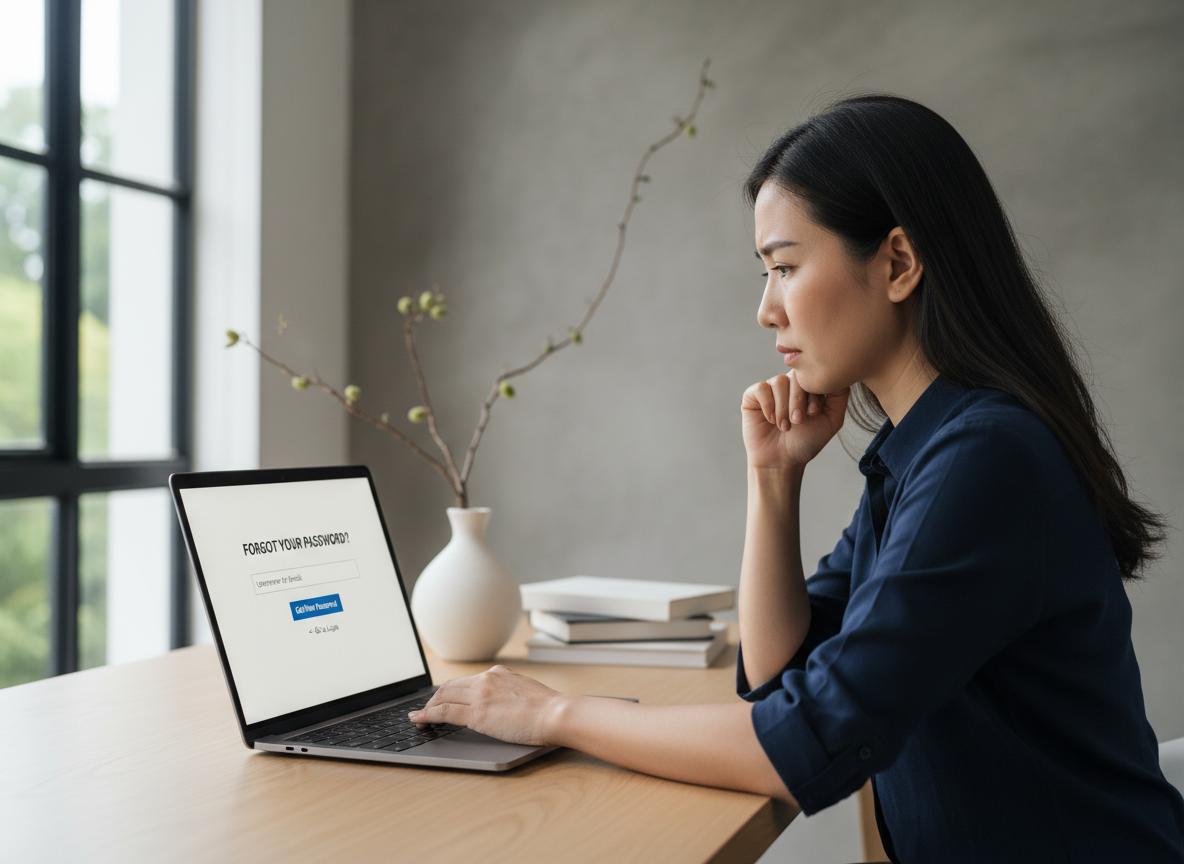
Forgetting your WordPress password is a very common problem. You can easily restore access via email, tamper with the database or use the FTP protocol.
Method 1: Use the function "Forgot your password?" (Lost your password?) via email.
Use the "Lost your password?" feature. Right on the login screen is the safest and fastest way to retrieve your WordPress password.
Just below the login information box, you'll see the text "Forgot your password?" (or Lost your password?). Click on it and enter your administrator email or username. The WordPress system will automatically send a password reset link to your email inbox. You just need to open the email, click on the link and create a new password.
Method 2: Change the admin password in the hosting's phpMyAdmin
If you cannot access your email, you can change the password directly in the database through the phpMyAdmin tool on your hosting control panel.
This is a deep intervention method, requiring you to have access to hosting's control panel (like cPanel or DirectAdmin). The steps are as follows:
- Bước 1: Đăng nhập vào hosting và mở công cụ phpMyAdmin.
- Bước 2: Chọn cơ sở dữ liệu (database) đang kết nối với website WordPress của bạn.
- Bước 3: Tìm và click vào bảng
wp_users(tiền tốwp_có thể khác tùy cấu hình). - Bước 4: Bấm "Edit" (Sửa) ở dòng chứa tài khoản admin của bạn.
- Bước 5: Tại cột
user_pass, chọn hàm mã hóa MD5 ở cột Function, sau đó nhập mật khẩu mới vào cột Value và lưu lại.
Method 3: Create a new admin account by intervening in the functions.php file
You can create a new WordPress admin account by inserting a PHP code into the active theme's functions.php file via an FTP connection.
Nếu bạn hoàn toàn mất quyền kiểm soát và không rành về database, việc dùng phần mềm FTP (như FileZilla) để kết nối với máy chủ là giải pháp cứu cánh. Bạn truy cập vào đường dẫn wp-content/themes/theme-dang-dung/, tải file functions.php về và thêm đoạn code tạo user mới (với quyền quản trị viên). Sau khi lưu và tải lên lại, bạn có thể dùng tài khoản mới này để đăng nhập và xử lý các tài khoản cũ.
Summary of common WordPress login errors and detailed solutions

Not being able to access the WordPress admin page can come from many reasons such as incorrect information, cache errors, source code conflicts or server errors.
Error of not being able to access the admin page due to incorrect username or password
This is the most basic error, often caused by typing the wrong character, turning on Caps Lock or Vietnamese percussion error.
When encountering a WordPress login error reporting incorrect information, the system will display a shaking red border. At this time, please carefully check the Caps Lock key, turn off Vietnamese typing software (such as Unikey, EVKey) and carefully re-enter. If it still doesn't work, apply the password recovery methods instructed above.
WordPress login error cannot access dashboard (dashboard page)
The WordPress login error of not being able to access the dashboard occurs when you enter the correct information but the system does not redirect to the dashboard, but instead throws it out or displays a blank page.
Nguyên nhân chính thường do phân quyền thư mục sai hoặc giới hạn bộ nhớ PHP (PHP Memory Limit) quá thấp. Để khắc phục lỗi không đăng nhập được wordpress dạng này, chúng tôi tại Phạm Hải: Blog cá nhân khuyên bạn nên truy cập vào file wp-config.php qua FTP và thêm dòng code define('WP_MEMORY_LIMIT', '256M'); để tăng giới hạn bộ nhớ.
Login page auto reload or wrong redirect error
The login page constantly reloads or redirects to the home page, often due to misconfiguration of the website URL in the database or .htaccess file error.
Để xử lý, bạn cần kết nối FTP, đổi tên file .htaccess cũ thành .htaccess_old để vô hiệu hóa nó, sau đó thử đăng nhập lại. Nếu thành công, hãy vào Settings > Permalinks và nhấn Save Changes để hệ thống tự tạo lại file .htaccess mới chuẩn xác. Đối với những bạn muốn hiểu sâu hơn về cấu trúc tệp tin hệ thống này, việc tham gia một khóa học wordpress cơ bản sẽ giúp bạn tự tin làm chủ mọi tình huống phát sinh.
Error "Cookies are blocked or not supported by your browser"
This error appears when your browser is blocking cookies or due to a conflict with the website's cache system.
WordPress yêu cầu cookie để xác thực phiên đăng nhập. Nếu gặp thông báo này, trước tiên hãy thử xóa toàn bộ cookie và cache của trình duyệt, hoặc thử đăng nhập bằng tab ẩn danh (Incognito). Nếu vẫn lỗi, bạn có thể cần thêm một đoạn mã nhỏ vào file wp-config.php để ép WordPress thiết lập lại đường dẫn cookie chuẩn.
White Screen of Death error when accessing the login page
The blank page error when entering wp-admin is often due to running out of PHP memory, or a serious code error in the theme/plugin.
Đây là nỗi ám ảnh của nhiều quản trị viên. Khi màn hình chỉ hiển thị một màu trắng toát, bạn không thể thao tác gì. Giải pháp tốt nhất là bật chế độ WP_DEBUG trong file wp-config.php thành true để xem dòng thông báo lỗi chi tiết. Dựa vào thông báo đó, bạn sẽ biết chính xác file nào đang gây lỗi để tiến hành sửa chữa hoặc xóa bỏ.
Error due to Plugin or Theme conflict
Conflicts between plugins or between plugins and the theme in use can break the WordPress login function.
Nếu bạn vừa cài đặt một plugin hoặc theme mới và ngay lập tức bị văng khỏi trang quản trị, thủ phạm chắc chắn là chúng. Cách khắc phục nhanh nhất là truy cập vào thư mục wp-content qua FTP, đổi tên thư mục plugins thành plugins_deactivate. Việc này sẽ vô hiệu hóa toàn bộ plugin. Sau đó, bạn đăng nhập lại và bật từng plugin lên để khoanh vùng kẻ gây rối.
Tips to improve security for WordPress admin login page
Protecting the login area is the first defense step to help your website avoid cyber attacks, data leaks and hacker intrusions.
Change the default WordPress login path to avoid being detected
Changing the default WordPress login path (wp-admin/wp-login) to a secret URL reduces automated attacks by 90%.
Các bot tự động của hacker luôn quét các đường dẫn mặc định này. Bằng cách sử dụng các plugin bảo mật như WPS Hide Login, bạn có thể dễ dàng đổi URL đăng nhập thành một từ khóa bất kỳ (ví dụ: tenmien.com/dang-nhap-bi-mat). Điều này đóng góp lớn vào việc nâng cao bảo mật website một cách chủ động.
Enable two-factor authentication (2FA) for added protection.
Two-factor authentication (2FA) requires users to enter an additional OTP code from the phone after entering the correct password, creating a solid layer of protection.
Based on the latest security updates as of March 2026, 2FA is considered a mandatory standard for professional websites. You can use plugins like Wordfence or Google Authenticator to set up this two-factor authentication feature. Even if hackers know your password, they cannot get past the step of entering the OTP code from your personal mobile device.
Limit the number of false login attempts to protect against Brute Force attacks
Limiting the number of login attempts will automatically block the bad guy's IP address if they repeatedly try to guess the password.
Brute Force attack is a form of software that automatically tries thousands of different passwords every minute. To prevent it, you should install the Limit Login Attempts Reloaded plugin. This plugin allows you to set: if you enter incorrectly more than 3 times, that IP will be locked for 24 hours. Combined with the installation of firewall (Firewall), your website will be safe from the risk of malicious code infection from hackers.
Use strong passwords and change them periodically
Using long, complex passwords and changing them periodically is a core security principle that never goes out of style.
A strong password should be 12-16 characters long, including uppercase letters, lowercase letters, numbers and special characters (!@#$%^&*). Never use easily guessable information such as website name, date of birth or "admin123". We at Pham Hai: Personal Blog recommend that you use password managers (such as Bitwarden, 1Password) to create and store passwords automatically, making management leisurely and absolutely safe.
Logging into your WordPress admin is a foundational skill for anyone managing a website. The article provides a clear roadmap from basic login steps, troubleshooting forgotten passwords, to fixing common errors and advanced security measures. Hopefully, with these comprehensive instructions, you will no longer have difficulty accessing and managing your website safely and effectively.
If you encounter any difficulties during implementation or need in-depth advice on WordPress website administration and security, please contact us for quick support!
Note: The information in this article is for reference only. For the best advice, please contact us directly for specific advice based on your actual needs.


![Bí Quyết Google Shopping Ads Bán Hàng Online Hiệu Quả [Tăng Lợi Nhuận]](https://phamhai.s3.vn-hcm-1.vietnix.cloud/wp-content/uploads/2026/03/ai-bi-quyet-google-shopping-ads-ban-hang-online-hieu-featured-175-600x400.webp)