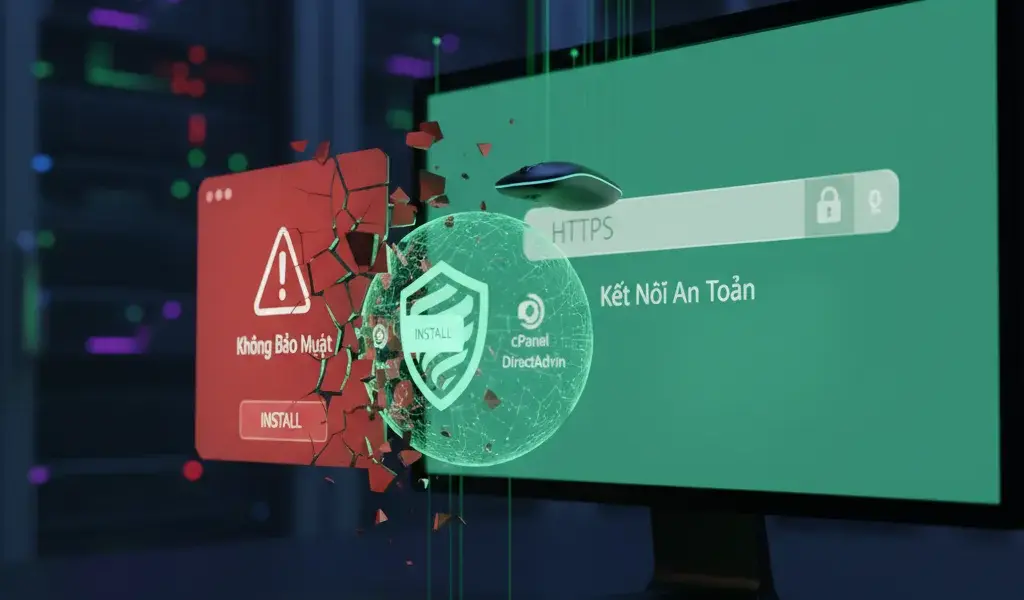
Seeing the red "Not Secure" text on your browser when accessing your website makes you sweat, right? I was also confused like that when I first started making websites many years ago. But the good news is that by 2026, you can completely install free SSL in cPanel DirectAdmin very quickly to upgrade your website to green HTTPS, increase your reputation and is also good for website SEO. Forget about complicated technical tutorials, Pham Hai will show you how to do it in just a few clicks, ensuring anyone can do it themselves.
Instructions for installing Let's Encrypt free SSL on cPanel (only 3 clicks!)
To install SSL on cPanel, you just need to access the SSL/TLS Status section, select the domain name to install and press the Run AutoSSL button to have the system automatically issue Let's Encrypt certificates.
If you are using cPanel hosting, everything is truly automated to the maximum thanks to the AutoSSL feature. The system will work with the free ssl provider for authentication and installation. To get a better overview of this control panel before getting started, you can check out the cPanel beginner's guide. Below is a detailed step-by-step way to install cpanel free ssl that I often do for customers.
Step 1: Immediately find the SSL/TLS Status section in the cPanel control panel
Log in to cPanel, scroll down to the Security section and click on the icon called SSL/TLS Status.
As soon as you enter the main cPanel interface, the fastest way is to type "SSL" into the search box at the top. The SSL/TLS Status section is where you manage the entire SSL certificate status of all domain names running on your hosting package. This interface is very intuitive and easy to see.
Step 2: Tick your domain name and press the "Run AutoSSL" button
In the domain list, tick the blank boxes before the domain name that needs to install a free SSL certificate, then click the blue "Run AutoSSL" button.
This process of installing SSL let's encrypt cpanel usually only takes about 1 to 2 minutes. During this time, the cPanel hosting server will implicitly connect to Let's Encrypt to perform the Domain Validation process (verify domain ownership). You just need to patiently wait for the website to automatically reload and you're done.
Step 3: Check the certificate is active and turn on "Force HTTPS Redirect" in the Domains section
When you see the green lock icon appear next to the domain name, it means SSL has been installed successfully. Next, you need to go to the Domains section and turn the "Force HTTPS Redirect" switch to On.
This step of redirecting http to https is extremely important but many people often forget. It requires all user access to go through a secure encrypted connection. If you skip this step, the website may still have an https insecure error when customers accidentally type "https://" in the address bar.
How to install free SSL on DirectAdmin (also easy)
Installation on DirectAdmin is done through Account Manager, you select SSL Certificates and enable the automatic Let's Encrypt certificate option.
Many people wonder if using DirectAdmin is more difficult to operate than cPanel. In fact, the way to install directadmin free ssl is equally smooth and fast. If you are wondering between these two management systems for an upcoming project, the article DirectAdmin vs cPanel hosting panel comparison will give you the clearest comparative perspective.
Step 1: In the Account Manager section, find "SSL Certificates"
Log in to the DirectAdmin interface, find the Account Manager menu in the left column of the screen and click on SSL Certificates.
This is the central area for you to manage all security files such as Private Key, CSR and CA Bundle for your website. The new DirectAdmin interface (Evolution skin) has now been designed to be very user-friendly.
Step 2: Select the "Free & automatic certificate from Let's Encrypt" tab
Switch to the automatic settings tab of Let's Encrypt so that the system will issue free SSL certificates instead of having to copy and paste the code manually.
This option helps you completely skip the cumbersome technical steps of creating keys. The DirectAdmin hosting system has built-in Let's Encrypt API. This helps optimize website security setup time down to seconds.
Step 3: Fill in information, select necessary items and click "Save"
Make sure the main domain name (domain.com) and subdomain name (www.domain.com) are ticked, other parameters remain the default, then click the Save button.
After clicking Save, the system will run in the background to authenticate. The process of installing ssl let's encrypt directadmin will be completed when you receive a green pop-up message with the words "Certificate and Key Saved". At this point, the certificate has been successfully attached to the domain name.
Step 4: Don't forget to enable 301 redirects from HTTP to HTTPS
Check the "Force SSL with https redirect" box right in the SSL Certificates interface or set it up in the Domain Setup section of DirectAdmin.
Enabling 301 redirects not only helps protect user data but also brings all the SEO power into a single URL. If you are running your website on Apache or Nginx, the control panel will automatically overwrite the configuration file to perform this redirect correctly.
Why does the website keep saying "Not Secure"? Understand properly about SSL to avoid confusion
The browser says "Not secure" because your website does not have an SSL certificate to encrypt data, making information transmitted between the user and the server vulnerable to theft.
When customers see this warning, 90% of them will leave the page immediately for fear of revealing their personal information. To understand the root of this technology problem, you should learn more about What is SSL HTTPS and how to install it for your website. Basically, why are newspaper websites not safe? That's because the browser (like Chrome, Safari) doesn't find the encryption protection layer, so it's responsible for warning the user.
What is Let's Encrypt Free SSL? Is it really safe?
Let's Encrypt is a non-profit certificate authority (CA), providing international standard 256-bit encrypted SSL certificates, completely secure for most common websites.
Many customers often ask Pham Hai what free ssl is and if using "temple" software will cause data leaks. The answer is NO. It uses an encryption algorithm comparable to expensive SSL types. It perfectly meets the security needs for personal blogs, news sites or small business websites.
Quick comparison of free and paid SSL: When should you spend money?
Free SSL is suitable for small websites with a level of domain validation (DV). Paid SSL has insurance and business authentication packages (OV, EV) specifically for large e-commerce sites and banks.
Comparing free and paid ssl is simple if you look at the table below. If you run a large sales website and need to display the company name in the address bar to increase absolute reliability, buy a paid SSL. For the rest, Let's Encrypt is the most cost-effective choice.
| Criteria | Free SSL (Let's Encrypt) | Paid SSL (Comodo, Sectigo…) |
|---|---|---|
| Mức độ xác minh | Domain Verification (DV) Only | Company verification (OV, EV) |
| Bảo hiểm rủi ro | Do not have | Yes (from $10,000 to millions of $) |
| Gia hạn | Automatically every 90 days | Manual/Automatic every 1 year |
Unexpected benefits of free SSL in addition to "security" for the website
In addition to data encryption, SSL also helps increase page loading speed thanks to the HTTP/2 protocol and is an extremely important ranking factor in the Google SEO algorithm.
The benefits of free SSL go beyond just displaying a green lock in the browser. It helps improve keyword rankings significantly because Google always prioritizes safe websites. Furthermore, combining the HTTPS protocol with Increase WordPress website speed techniques will make the user experience on your site smoother than ever.
Some "difficult" SSL errors and how I fixed them in 5 minutes
Common errors such as Mixed Content or non-private connections are often due to misconfigured image links or certificates that have not been allocated synchronously.
In more than 10 years of working as a web designer and administrator, I have encountered countless cases where customers still get SSL errors after installing themselves. Don't worry too much, most of the ways to fix SSL errors on Chrome have rules and are easy to handle if you catch the "disease" correctly.
"Mixed Content" error: A silent enemy that drags down SEO rankings
Mixed content error occurs when your website runs HTTPS but internal resources such as images, CSS or JS are still loading via the old HTTP link.
This error causes the green lock icon to disappear even though you have successfully installed SSL. To completely fix it on the WordPress platform, you can install the Really Simple SSL plugin to automatically force links. Or more professionally, use the Better Search Replace plugin to change the entire "http://" prefix to "https://" directly in the database. This is an essential check in the WordPress website security process that you should not ignore.
"Your connection is not private" error: Don't panic! Here's how to handle it
This error (NET::ERRCERTDATE_INVALID) is often caused by the SSL expiration date, wrong system time on the user's computer, or a missing CA Bundle file on the server. You just need to run AutoSSL again to grant a new level.
The fastest way to fix the error that your connection is not private is to log back into cPanel/DirectAdmin and press re-issue the certificate. Another very common case is because you use Cloudflare as an intermediary. If you enable orange cloud on Cloudflare but have not switched SSL/TLS mode to "Full (Strict)", the website on IIS or Apache will have a redirect loop error (Too many redirects) immediately.
SSL expired but forgot to renew? AutoSSL on cPanel/DirectAdmin takes care of everything!
Let's Encrypt certificates have a maximum SSL validity of 90 days, but the hosting's AutoSSL feature will automatically renew about 30 days before expiration without your intervention.
Let's Encrypt has a 90-day limit to minimize the risk if the key is leaked. Fortunately, free ssl renewal happens completely automatically using cronjobs on the server. However, to prevent the server from having an IP error that cannot automatically renew, causing the website to crash, you should set Backup website from cPanel automatically regularly to protect the safest data.
See, installing free SSL in cPanel DirectAdmin is actually very simple and has a clear process. Don't let the "Not Secure" warning scare off customers, lose trust, and cause Google to underestimate your website. Just spend a few minutes working and your website will have a secure green lock, both increasing its professionalism and adding a great plus point for SEO. At this time, there is no reason for you to delay upgrading to HTTPS.
Have you manually installed an SSL certificate for your website? If you have difficulty in any step during the implementation process, or are stuck on a certain configuration error, please leave a comment below, Pham Hai will help check it for you right away!
Note: The information in this article is for reference only. To get the best advice, please contact us directly for specific advice based on your actual needs.