backup of WordPress website is the strongest shield to protect all data against risks such as hacker attacks, update errors or server problems. Creating regular backups of both source code files and databases helps you stay proactive. This article will guide you through comprehensive backup methods, from automatic to manual, ensuring absolute safety for your digital assets.

3 Most Popular and Safest Ways to Backup WordPress Website
Currently, there are 3 main backup methods recommended by experts: using automatic plugins, manual operations via cPanel and taking advantage of the hosting provider's available features.
At Pham Hai: Personal Blog, we always emphasize that there is no single method that is perfect for everyone. The choice depends on your technical level, budget and actual needs. Understanding the pros and cons of each method will help you build the most optimal data protection strategy. Below is a detailed analysis for each approach.
Method 1: Use UpdraftPlus Plugin to Backup Automatically (Recommended for everyone)
UpdraftPlus is the ultimate solution that helps you set up automatic backup schedules and store data directly to cloud platforms with just a few clicks.
If you are wondering how to backup wordpress automatically without touching complicated lines of code, then using wordpress backup plugin is the easiest answer. UpdraftPlus is currently the most popular tool globally, allowing you to independently backup both database and wordpress source code files according to a predetermined schedule.
Backups are pushed straight to secure cloud storage services like Google Drive, Dropbox or Amazon S3. This is definitely one of the essential wordpress plugins that any admin should install right after starting a website. Furthermore, with the incremental backup feature in premium versions, the system only saves the latest changes, contributing to optimizing storage space and not weighing down the server.
Method 2: Backup WordPress manually via cPanel (Control the entire process)
Cách sao lưu wordpress thủ công qua cPanel cho phép bạn tải trực tiếp mã nguồn và xuất cơ sở dữ liệu mà không cần phụ thuộc vào bất kỳ phần mềm bên thứ ba nào.
This method is especially for administrators who want to have absolute control over their data flow. By directly accessing the File Manager tool in cPanel or through the FTP protocol, you can compress the entire root directory (containing core components such as wp-content, wp-admin, wp-includes).
Next, you will use the phpMyAdmin tool to export the database SQL format file. Although it requires users to spend more technical operations, this is the most reliable way to back up all WordPress data, especially useful in emergency situations when you cannot access the wp-admin page of the website.
Method 3: Use Hosting's available Backup feature (Convenient and fast)
Most hosting service providers today have built-in periodic backup tools right in the customer's hosting administration control panel.
Taking advantage of hosting's automated tools is a great and hassle-free added layer of protection. Reputable providers often automatically create daily or weekly backups at the server level. If you are looking for a stable infrastructure platform with this feature deeply integrated, prioritizing the best wordpress hosting is extremely important to ensure performance.
However, as experts, we advise you not to depend 100% on the hosting system. Always combine with a standalone plugin to avoid "putting all your eggs in one basket" in case the entire server system has serious problems.
Why Is Regular Backup of WordPress Website Required?

Tại sao cần backup website wordpress thường xuyên? Bởi vì đây là cách duy nhất và chắc chắn nhất đảm bảo bạn có thể phục hồi nhanh chóng mọi dữ liệu khi đối mặt với các rủi ro không lường trước.
The internet environment is always changing and has countless data loss risks. Establishing and maintaining a regular backup schedule not only helps you protect thousands of hours of content work, but also maintains business continuity.
Protect data against the risk of hacker attacks or malware infection
A clean backup is the only salvation that helps you restore the safe state of your website immediately if the system is accidentally compromised by hackers.
When a website is hacked or has sophisticated malicious code inserted, attempting to clean it up manually is often complicated, expensive, and rarely completely solves the problem. At this time, deleting the old source code and restoring from a backup before the attack is the smartest, fastest and safest solution.
Besides maintaining backups, you also need to proactively learn and apply in-depth wordpress website security measures to build a solid defense system from the beginning. Remember, website security and data backup are always two inseparable elements.
Recover quickly when the website fails due to plugin/theme updates
Source code conflicts when upgrading to new versions are a common cause of blank page errors; Backing up before updating makes it easy to reverse the situation.
The WordPress ecosystem is constantly changing. It's not uncommon for a plugin/theme update error or a WordPress core patch to cause the entire interface to break, or cause a "White Screen of Death" error that makes it inaccessible to anyone.
If you have carefully created backup data, it will only take you a few minutes to restore WordPress to a normal and stable operating state. This helps you avoid having to spend stressful hours reading error logs, looking for conflicting lines of code, and fixing them manually.
Peace of mind when moving your WordPress website to a new host or another domain name
Cách chuyển website wordpress sang host mới an toàn nhất luôn bắt đầu bằng việc tạo một bản sao lưu toàn diện toàn bộ thư mục và cơ sở dữ liệu hiện tại.
The process of moving wordpress from one server to another always carries the risk of file loss due to interrupted transmission. Having a complete backup package (often automatically packaged by tools like Duplicator) will help the transition process go smoothly. It ensures that none of your posts, comments, or product images are left behind during the "moving" process.
Avoid losing data due to problems from hosting providers or user errors
Hardware failure from the server or accidental deletion of data by humans can permanently wipe out your website if there is no independent backup.
Even though the service provider commits to an uptime of up to 99.9%, disasters such as data center fires and explosions or physical hard drive failures can still happen unexpectedly. At the same time, human error (such as accidentally deleting an important article or dropping the wrong table in the database) is also very common. Having a backup stored elsewhere on hand means you have solid insurance against any risk of data loss.
Detailed Instructions for Backup and Restore Process
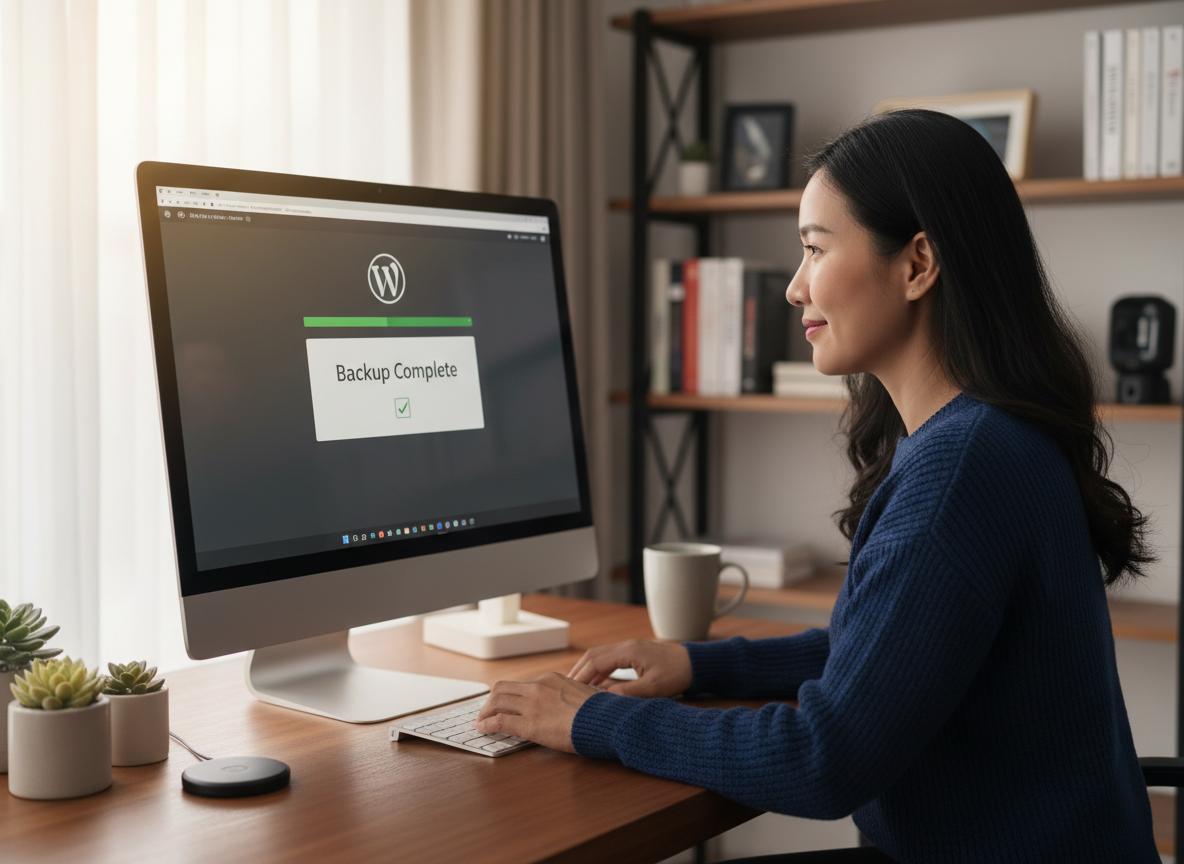
Below are detailed practical steps to help you confidently back up and restore data for your WordPress website in the most accurate way.
At Pham Hai: Personal Blog, we have directly guided and supported thousands of users to successfully perform these technical operations. Whether you choose the automatic or manual method, read it carefully and follow the correct order to ensure data integrity.
Steps to backup WordPress manually using cPanel and phpMyAdmin
This process includes two main inseparable stages: compressing the source code download from the File Manager and exporting the .sql file from the database management tool.
If you are wondering how the steps to backup WordPress using cpanel specifically take place, follow the detailed instructions below. This is also considered the most standard way to backup WordPress database that programmers often use:
| Step | Working with Source Code (File Manager) | Working with Database (phpMyAdmin) |
|---|---|---|
| 1 | Log in to cPanel, open the File Manager tool. | Log in to cPanel, find and open the phpMyAdmin tool. |
| 2 | Tìm đến thư mục public_html, bôi đen toàn bộ, chọn "Compress" (Nén) thành định dạng file .zip. |
Select the correct database name linked to the website in the left column of the screen. |
| 3 | Download the .zip file that has been successfully compressed for safe storage on your personal computer. | Switch to the "Export" tab, select SQL format, Quick method and press "Go". |
After completing the above 3 steps for both columns, you have safely stored all wordpress themes and plugins as well as all article content and website settings.
Instructions for installing and configuring UpdraftPlus Plugin for automatic backups
Installing UpdraftPlus from the plugin repository, connecting to your Google Drive account and setting up an automatic run schedule are the three basic steps to put your website in a protected state.
To start setting up an automated defense system, follow these steps:
- Log in to WordPress Admin, go to Plugins > Add New, search for the keyword "UpdraftPlus" and click Install, then Activate.
- Go to Settings > UpdraftPlus Backups on the menu bar.
- Switch to the Settings tab. Here, choose the appropriate periodic backup schedule (for example, Daily for Database and Weekly for Files to optimize capacity).
- Choose a remote storage platform (we recommend Google Drive), click on your Google account authentication link, allow access, and scroll to the bottom and click Save Changes. From now on, the system will work automatically without your intervention.
How to restore (Restore) WordPress website when there is an error from the backup file
Cách khôi phục website wordpress khi bị lỗi cực kỳ đơn giản nếu bạn dùng plugin: chỉ cần vào mục Restore, chọn bản sao lưu gần nhất và nhấn nút xác nhận.
If you are using UpdraftPlus and your website still has access to the admin page, you can simply go to the plugin dashboard, find the list of available backups under the "Existing Backups" tab and press the "Restore" button. The system will automatically decompress and safely overwrite old data.
Trong trường hợp website bị lỗi trắng trang hoặc lỗi 500 không thể vào được admin, bạn sẽ phải tiến hành khôi phục thủ công: truy cập cPanel xóa sạch các file mã nguồn bị lỗi, tải file .zip đã backup lên giải nén lại vào public_html, và dùng phpMyAdmin để Drop (xóa) các table cũ rồi Import lại file .sql gốc.
Frequently Asked Questions When Backing Up WordPress Website
Summary of detailed answers to users' most common questions about storage location, frequency of execution, and selection of backup support tools.
In our process of supporting the community, we've noticed some recurring patterns of questions. Below are the real-life experiences we have gathered after many years of directly administering and rescuing the system.
Where should I store WordPress backups safely? (Rule 3-2-1)
Lưu trữ bản backup wordpress ở đâu an toàn? Hãy luôn tuân thủ nghiêm ngặt quy tắc 3-2-1: giữ 3 bản sao của dữ liệu, trên ít nhất 2 định dạng lưu trữ khác nhau, và đảm bảo có 1 bản lưu trữ ở một vị trí địa lý khác (off-site).
The golden rule in the information technology industry is to never save a backup on the same hard drive or the same server as the website that is running. If the server crashes, you lose both your website and your backup.
The best way is to download a copy to local storage on your personal computer or removable hard drive, and simultaneously configure a copy to sync to reputable third-party cloud services. This intentional spreading of risk ensures you always have a safe way back in the worst possible situations.
How often is it reasonable to backup a WordPress website?
Backup frequency depends entirely on the level of content updates of the website: news sites need to be backed up daily, while personal blogs with few articles can be backed up weekly.
There is no one-size-fits-all number. For e-commerce sites with a constant volume of transactions, orders and comments every hour, you even need to look for real-time backup solutions to not miss any customer data.
On the contrary, with a static business introduction website that rarely changes content, backing up once a week or once a month is enough. Setting the appropriate frequency helps you optimize cloud storage capacity while still ensuring data security at the highest level.
Which WordPress backup plugin is the best today? (Compare UpdraftPlus, BackWPup, Duplicator)
If you're wondering which wordpress backup plugin is best, UpdraftPlus is the leader in automation, Duplicator is strong in portability, and BackWPup is great for advanced scheduling.
To help you make your decision, take a look at the quick comparison table below:
| Plugin name | The most outstanding strength | Recommended subject |
|---|---|---|
| UpdraftPlus | Intuitive interface, easy Cloud connection, extremely stable 1-click Restore feature. | Suitable for 90% of common users, bloggers, and small businesses. |
| Duplicator | Pack the entire website into 2 compact files, handle automatic domain name changes in the database very smoothly. | Programmers who often need to clone or transfer hosts for websites. |
| BackWPup | The free version allows creating complex tasks (jobs), supports exporting files to FTP or sending via email. | System administrators need deep customization of data storage flows. |
backing up a WordPress website is not as complicated as many people think, but it is vital to the safety and sustainability of all online data. Whether you decide to take manual control or use the power of automated plugins like UpdraftPlus, the most important thing is to establish and maintain a regular backup routine. At Pham Hai: Personal Blog, we believe that backing up is a mandatory investment of time to ensure your website is always protected, ready to recover quickly from any unexpected incidents, giving you complete peace of mind to focus on developing your business.
Don't wait until a catastrophic incident occurs to start looking for ways to save it! Choose the method that suits you best and protect all your website data today. If you have any questions during the operation, please leave a comment below to receive timely support from the community and experts!
Note: The information in this article is for reference only. For the best advice, please contact us directly for specific advice based on your actual needs.